
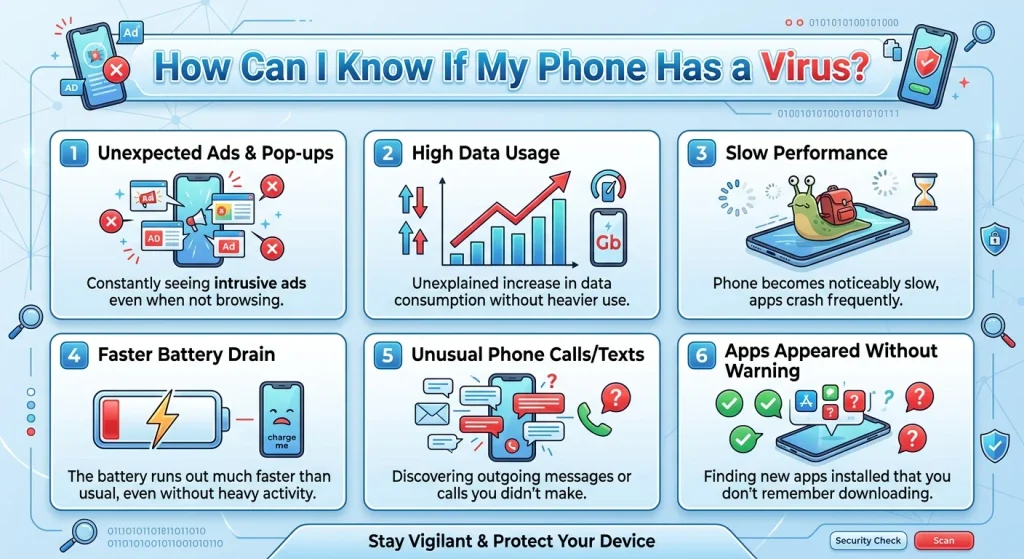
Smartphones store a large amount of personal information, including photos, passwords, banking details, private messages, and social media accounts. That is why discovering unusual activity on your phone can be worrying. You might notice unexpected advertisements, overheating, unfamiliar applications, or unusually high data usage and wonder whether your phone has a virus.
The good news is that many smartphone problems have ordinary explanations. However, certain warning signs can indicate malware, spyware, or another security threat.
Both Android and iPhone devices have built-in security protections, but neither is completely immune to every type of attack. Knowing what to look for can help you identify suspicious activity and protect your personal information.
In this guide, you will learn how to recognize possible virus infections, check your Android or iPhone, remove suspicious applications, and prevent future security problems.
What Are the Signs That Your Phone Has a Virus?
A virus is a type of malware that can infect a device, interfere with its operation, or perform unwanted activities. People often use the word virus to describe different threats, including spyware, adware, trojans, and malicious applications.
Here are some common warning signs to investigate.
1. Your Phone Suddenly Becomes Slow
If your phone starts running slowly without an obvious reason, malware could be one possible explanation.
Malicious applications may run background processes, consume system resources, or perform activities without your knowledge.
You might notice:
- Applications taking longer to open.
- Frequent freezing or unexpected crashes.
- Delayed keyboard responses.
- Slow performance even when using simple applications.
However, an older phone, limited storage, software bugs, or too many background applications can cause similar problems. Slowness alone does not prove that your phone has a virus.
2. Too Many Pop-Up Advertisements Appear
Unexpected advertisements are another possible warning sign, particularly on Android devices.
Be cautious if you notice advertisements:
- Appearing on your home screen.
- Opening automatically without tapping anything.
- Showing up outside your browser.
- Redirecting you to unfamiliar websites.
- Appearing immediately after installing an application.
This behavior may indicate adware or a suspicious application.
Remember that ordinary websites can also display aggressive advertisements and notifications. If advertisements appear only inside a particular browser, check its notification permissions and website settings before assuming the phone is infected.
3. Your Battery Drains Faster Than Usual
Malicious software may operate in the background and consume additional battery power.
You may notice that your phone loses battery unusually quickly, even when you are not actively using it.
To investigate, check battery usage.
On Android:
- Open Settings.
- Select Battery.
- Open Battery Usage.
- Review applications consuming the most power.
- Investigate unfamiliar applications with unusually high usage.
On iPhone:
- Open Settings.
- Tap Battery.
- Review the battery usage chart.
- Check which applications are consuming the most power.
- Investigate applications showing unexpected background activity.
A deteriorating battery, weak mobile signal, location services, and software updates can also cause rapid battery drain.
4. Your Phone Uses More Mobile Data
Some malicious applications communicate with external servers, download additional files, or transmit information in the background.
This can increase mobile data consumption.
Check your usage to identify unfamiliar applications.
Android:
- Open Settings.
- Go to Network and Internet or Connections.
- Find Data Usage.
- Review mobile data consumption by application.
iPhone:
- Open Settings.
- Select Cellular or Mobile Service.
- Scroll down to review data usage by application.
If an unfamiliar application is consuming significant data without a clear reason, investigate it.
5. Unknown Applications Appear on Your Phone
One of the more important warning signs is discovering an application that you do not remember installing.
Some malicious applications use misleading names or icons to look like legitimate system tools.
Check your installed applications and investigate anything unfamiliar.
On Android, open Settings and look under Apps or App Management.
On iPhone, review the Home Screen and App Library.
Do not immediately delete unfamiliar system components. First verify whether they belong to your phone manufacturer or operating system.
6. Your Phone Overheats Without Heavy Use
A phone can become warm during gaming, video recording, charging, or intensive applications.
However, repeated overheating while the device is idle may deserve investigation.
Possible causes include:
- Applications running continuously in the background.
- Malware performing unauthorized activities.
- Software bugs.
- Battery problems.
- Poor network reception.
Check battery activity and recently installed applications to identify possible causes.
7. Your Browser Redirects You to Unknown Websites
If your browser repeatedly opens unfamiliar pages, displays fake security warnings, or redirects you to suspicious websites, it may have unwanted extensions, malicious notifications, or adware-related settings.
Be especially careful with messages claiming:
- Your phone has several viruses.
- Your personal information is being stolen.
- Your device needs an urgent security update.
- You must install an application to clean your phone.
These messages are frequently designed to scare users into clicking malicious links or installing unwanted software.
Close the suspicious page instead of following its instructions.
8. You Notice Unusual Activity on Your Accounts
If someone gains access to your phone or account information, you might notice suspicious activity such as:
- Login alerts from unfamiliar locations.
- Password reset emails you did not request.
- Messages sent without your permission.
- Unknown devices connected to your accounts.
- Unexpected changes to account settings.
These signs do not necessarily mean your phone has a virus. Your account password may have been exposed through phishing, a data breach, or another compromised device.
Change affected passwords using a trusted device and enable two-factor authentication.
How to Check If Your Android Phone Has a Virus
Android allows users to install applications from different sources, which can increase exposure to malicious software if proper precautions are not followed.
Here are several ways to check your device.
1. Run Google Play Protect
Google Play Protect scans applications for potentially harmful behavior.
To check your phone:
- Open the Google Play Store.
- Tap your profile picture.
- Select Play Protect.
- Tap Scan.
- Review the results.
If Play Protect identifies a harmful application, follow its instructions to remove or disable the threat.
Keep Play Protect enabled to help detect potentially harmful applications.
2. Review Recently Installed Applications
Think about whether the problems started after installing a particular application.
Open Settings, select Apps, and review recently installed applications.
Pay attention to applications downloaded from unfamiliar websites, unofficial stores, or links shared through messages.
If an application appears suspicious, uninstall it.
3. Check Application Permissions
Some malicious applications request permissions they do not reasonably need.
For example, a simple wallpaper application may not need access to your microphone, contacts, or SMS messages.
To review permissions:
- Open Settings.
- Select Security and Privacy or Privacy.
- Open Permission Manager.
- Review permissions for sensitive categories.
- Remove unnecessary permissions from suspicious applications.
Pay particular attention to camera, microphone, location, contacts, SMS, and accessibility access.
4. Check Device Administrator and Accessibility Access
Some malicious Android applications misuse special permissions to make themselves difficult to remove or monitor activity.
Review:
- Device administrator applications.
- Accessibility services.
- Apps allowed to install unknown applications.
- VPN applications you do not recognize.
Menu names vary by Android version and manufacturer.
If an unfamiliar application has powerful permissions, investigate it before uninstalling it.
How to Check If Your iPhone Has a Virus
iPhones have security protections that limit how applications interact with the operating system. Traditional malware infections are less common than on many Android devices, but security threats and unwanted configurations are still possible.
1. Review Installed Applications
Check your Home Screen and App Library for applications you do not recognize.
If you find something suspicious:
- Press and hold its icon.
- Select Remove App.
- Choose Delete App if you are sure it is unwanted.
Also review your purchased and downloaded application history if necessary.
2. Check iPhone Storage
Open Settings and navigate to General, then iPhone Storage.
Review the installed applications and their storage usage.
Investigate unfamiliar applications or applications that appeared around the time unusual behavior started.
3. Check VPN and Device Management Profiles
Unknown configuration profiles or device-management settings can change how your iPhone operates.
To check:
- Open Settings.
- Select General.
- Look for VPN and Device Management.
- Review installed profiles and management entries.
If you see an unfamiliar profile, investigate its origin. Do not remove a legitimate work or school management profile without checking with the organization responsible for it.
4. Update iOS
Apple regularly releases security updates to address vulnerabilities.
To check for an update:
- Open Settings.
- Select General.
- Tap Software Update.
- Install an available update.
Keeping your iPhone updated helps protect against known security vulnerabilities.
How to Remove a Virus From Your Phone
If you suspect malware, take these steps to reduce the risk.
Step 1: Disconnect From the Internet if Necessary
If an application is actively displaying suspicious activity or transmitting information, temporarily turn off Wi-Fi and mobile data.
This may interrupt some malicious communication while you investigate.
However, disconnecting from the internet does not remove malware.
Step 2: Uninstall Suspicious Applications
Remove applications that you have identified as malicious or unnecessary.
On Android, if an application prevents uninstallation, you may need to disable its device administrator or accessibility permissions first.
On iPhone, delete suspicious applications and investigate unknown configuration profiles.
Step 3: Update Your Operating System
Install the latest available security updates for your device.
Updates can fix vulnerabilities that attackers may exploit.
Step 4: Change Important Passwords
If you suspect that your personal information or accounts have been compromised, change passwords from a trusted device.
Prioritize:
- Google or Apple Account.
- Email accounts.
- Banking applications.
- Social media accounts.
- Messaging applications.
Enable two-factor authentication wherever possible and review active account sessions.
Step 5: Consider a Factory Reset
If suspicious activity continues despite removing unwanted applications and updating the device, a factory reset may be necessary.
Before resetting:
- Back up important photos and documents.
- Make sure you know your account passwords.
- Understand which information will be erased.
- Avoid restoring suspicious applications or settings.
A factory reset can remove many software-based threats, but it does not fix compromised online accounts or hardware problems.
If the device is managed by an organization or appears to have a more sophisticated compromise, seek professional assistance.
How to Protect Your Phone From Viruses in the Future
Prevention is easier than dealing with a compromised device.
Follow these security practices:
- Download applications only from trusted sources.
- Avoid clicking suspicious links in messages and emails.
- Keep Android or iOS updated.
- Review application permissions regularly.
- Avoid installing modified or pirated applications.
- Do not share verification codes with anyone.
- Use strong, unique passwords.
- Enable two-factor authentication.
- Keep regular backups of important information.
- Avoid connecting to suspicious public Wi-Fi networks without appropriate protection.
Also remember that legitimate-looking applications and websites can sometimes be malicious. Check the developer, reviews, permissions, and download source before installing anything.
Frequently Asked Questions
Can an iPhone get a virus?
Yes, although traditional malware infections are less common on iPhones because of Apple’s security architecture. iPhones can still be affected by malicious websites, phishing, spyware, compromised accounts, and security vulnerabilities.
Can a virus damage my phone permanently?
Most software-based malware does not physically destroy a smartphone. However, malicious software can compromise personal information, interfere with applications, or cause performance problems. Hardware damage is more commonly associated with battery faults, overheating, or physical problems.
Does battery draining mean my phone has a virus?
No. Battery drain can result from aging batteries, background applications, weak network signals, software updates, and high screen brightness. It is only one possible warning sign and should be investigated alongside other symptoms.
Can a phone get a virus from visiting a website?
Simply visiting a website does not usually infect a modern smartphone. However, malicious websites can use phishing, deceptive downloads, harmful advertisements, or security vulnerabilities to expose users to threats.
Should I install an antivirus application on my phone?
Android users can benefit from reputable mobile security applications, particularly when they frequently install applications from different sources. Google Play Protect also provides built-in protection. iPhone users should focus on software updates, account security, and avoiding suspicious links because traditional antivirus applications have limited access to scan the iOS system.
Can a factory reset remove a phone virus?
A factory reset can remove many software-based infections by erasing user-installed applications and data. However, it does not automatically secure compromised accounts, and some unusual or advanced threats may require additional assistance.
Conclusion
If your phone suddenly becomes slow, overheats, displays unexpected advertisements, or consumes unusual amounts of battery and mobile data, it is worth checking for malware.
Start by reviewing installed applications, checking battery and data usage, examining permissions, and running Google Play Protect on Android. iPhone users should review installed applications, configuration profiles, and available security updates.
Most importantly, do not assume that every unusual phone behavior means a virus is present. Investigate the symptoms carefully, remove confirmed threats, and keep your device and accounts protected with regular security updates.