
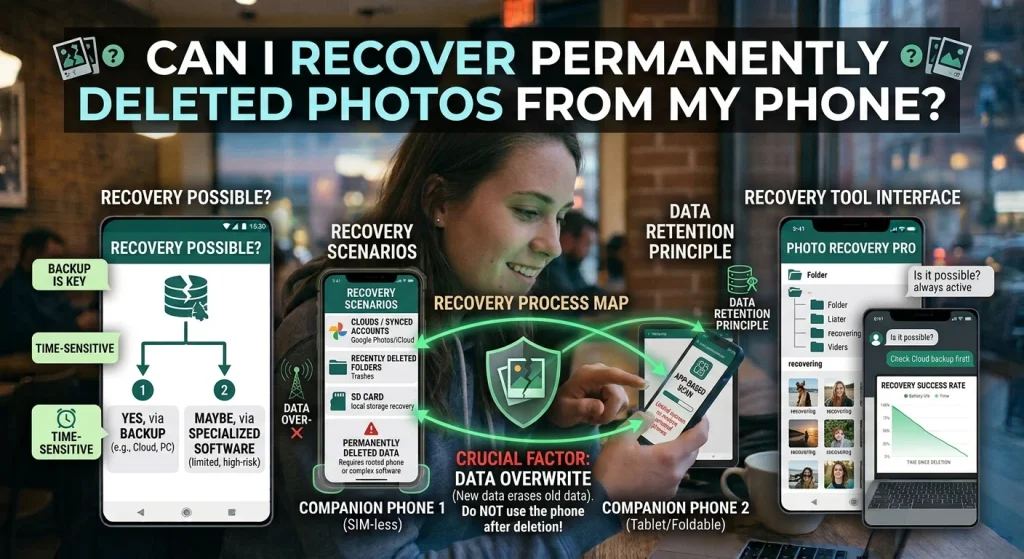
Losing important photos can be frustrating, especially when they have been permanently deleted from your phone. Whether the pictures contain family memories, important documents, travel moments, or personal information, you may wonder if there is still a way to get them back.
The good news is that permanently deleted photos are sometimes recoverable. However, success depends on how the photos were deleted, whether a backup exists, how much the phone has been used since deletion, and whether the storage data has been overwritten.
Both Android and iPhone offer several recovery options. In this guide, you will learn how to check recently deleted folders, restore cloud backups, recover photos from other devices, and understand when recovery may no longer be possible.
Can You Recover Permanently Deleted Photos?
Yes, but not in every situation.
When you delete a photo, it may initially move to a temporary folder such as Recently Deleted or Trash. During this period, you can usually restore it directly.
After you empty that folder or the retention period expires, the photo may become permanently deleted from the gallery. At this point, recovery generally depends on whether another copy exists in a backup, cloud account, computer, messaging app, or external storage device.
Modern smartphones also use encryption and storage-management technologies that can make direct recovery difficult.
How to Recover Permanently Deleted Photos on Android
If you use an Android phone, try these methods before installing recovery applications.
1. Check Google Photos Trash
Google Photos may keep deleted pictures in its Trash folder before permanently removing them.
Follow these steps:
- Open the Google Photos app.
- Tap Collections or Library, depending on your app version.
- Open Trash or Bin.
- Look for the deleted photos.
- Select the pictures you want to recover.
- Tap Restore.
Restored photos may return to your Google Photos library and, depending on their original location and device settings, may also appear in your phone’s gallery.
Google Photos generally keeps backed-up deleted items in Trash for up to 60 days. Items that were not backed up may have a shorter retention period, commonly 30 days. Policies and app behavior can change, so check the information displayed in your account.
If you already emptied the Trash or the retention period expired, continue with the other methods.
2. Check Your Phone’s Gallery Trash
Many Android manufacturers include a Recently Deleted or Recycle Bin feature in their gallery apps.
For example, Samsung Gallery provides a Recycle Bin feature when enabled.
To check:
- Open your phone’s Gallery app.
- Find the Menu or Albums section.
- Look for Recycle Bin, Trash, or Recently Deleted.
- Select the photos.
- Tap Restore.
The exact location and retention period depend on your phone manufacturer and software version.
3. Restore Photos From Google One or Another Cloud Backup
Some Android users have cloud backups through Google One or manufacturer services.
Check whether your photos were synchronized with a cloud account before deletion. Open the relevant service using the same account that was active when the pictures were saved.
Remember that a general phone backup does not necessarily contain every original photo. Photos may be handled separately through Google Photos or another synchronization service.
Before restoring an entire phone backup, check what information it contains. A full-device restore may replace newer data or require resetting the device.
4. Check an SD Card
If your Android phone stored pictures on a removable microSD card, recovery may be possible even after deletion.
Follow these precautions:
- Stop saving new files to the SD card.
- Remove the card safely.
- Connect it to a computer using a card reader.
- Use reputable data-recovery software to scan it.
- Save recovered files to the computer or another storage device.
Do not save recovered pictures back onto the same card because doing so could overwrite other deleted data.
Recovery is not guaranteed. It depends on the card’s condition and whether the deleted data has been overwritten.
How to Recover Permanently Deleted Photos on iPhone
iPhone users have several recovery options, particularly if iCloud Photos or an earlier device backup was enabled.
1. Check the Recently Deleted Album
First, check Apple’s Recently Deleted album.
- Open the Photos app.
- Scroll to Utilities or find Recently Deleted.
- Unlock the album using Face ID, Touch ID, or your passcode if requested.
- Select the photos.
- Tap Recover.
Apple generally keeps deleted photos in Recently Deleted for 30 days. After that, they are permanently deleted from that album.
If the pictures are not there, try the next option.
2. Check iCloud Photos
If iCloud Photos was enabled, your pictures may have synchronized with your Apple Account.
Visit iCloud Photos through a browser and sign in with the same Apple Account used on your iPhone.
Check whether the missing pictures are available in the main library or Recently Deleted.
Important: iCloud Photos is a synchronization service. If you delete a photo while synchronization is enabled, that deletion can also apply to your other connected Apple devices. It is not necessarily a separate backup.
3. Restore an iCloud Backup
If you created an iCloud device backup before deleting the photos, an older backup might contain them.
However, there is an important limitation: when iCloud Photos is enabled, photos synchronized through iCloud Photos are generally not included in the regular iCloud device backup because they are stored separately.
If iCloud Photos was disabled, the photos may have been included in the device backup.
Before restoring:
- Check the backup date.
- Confirm that it predates the deletion.
- Understand that restoring a backup may require erasing your iPhone first.
- Make a current backup of important information before proceeding.
Restoring an old backup can replace newer data, so do not rush into this method.
4. Check Your Mac or Computer
If you previously imported your iPhone photos to a Mac or Windows computer, another copy may still exist.
Check:
- The Photos app on your Mac.
- The Pictures folder.
- Windows Photos or imported image folders.
- External hard drives.
- Computer backups, including Time Machine where applicable.
You may find the original pictures even if they have disappeared from your iPhone.
Can Photo Recovery Apps Restore Permanently Deleted Pictures?
Several applications claim to recover permanently deleted photos from Android and iPhone devices. However, their effectiveness varies significantly.
Some applications can locate existing thumbnails, cached images, or files that remain accessible. Others simply scan folders and backups that you could check yourself.
Modern Android and iPhone storage systems use encryption, file-management features, and other protections that make direct recovery of deleted internal-storage files difficult.
Before installing any recovery application, consider these points:
- Check independent reviews and the developer’s reputation.
- Avoid applications requesting unnecessary permissions.
- Never provide your Apple Account or Google password to an untrusted recovery service.
- Do not pay for software before understanding its actual recovery capabilities.
- Avoid saving new files to storage that may contain recoverable data.
Be especially careful with applications promising guaranteed recovery of every permanently deleted photo. Such claims are often unrealistic.
Can You Recover Photos Without a Backup?
This is one of the most difficult recovery situations.
If a photo has been permanently deleted, no backup exists, and the phone uses modern encrypted internal storage, recovery may be impossible.
However, you should check other possible copies before giving up.
Look for Photos in Messaging Apps
If you previously shared the picture through WhatsApp, Telegram, Messenger, or email, another copy may still exist in the conversation or attachment history.
Check the original chat, downloaded media folders, and other devices where the conversation was accessed.
Keep in mind that the image may have been compressed or resized when shared.
Check Other Cloud Accounts
You may have automatically uploaded photos to another service without remembering it.
Check accounts connected to services such as:
- OneDrive
- Dropbox
- Amazon Photos
- Google Photos
- iCloud Photos
Use the correct account and search the photo library, deleted-items folder, and archived files where available.
Contact a Professional Data Recovery Service
If the pictures are extremely important, a professional data recovery company may be worth consulting.
However, recovery from modern smartphone internal storage is not guaranteed. Encryption, hardware damage, secure deletion, and storage-management systems can make recovery technically impossible.
Choose a reputable service, ask about its diagnostic process and privacy practices, and avoid anyone promising guaranteed results.
Why Do Permanently Deleted Photos Become Difficult to Recover?
When a photo is deleted, the phone’s storage system may mark the space it occupied as available for future use.
As the device continues operating, new information may occupy that space. This can make recovery difficult or impossible.
Modern smartphones also use technologies such as:
- Encryption: Protects stored information from unauthorized access.
- Flash storage management: Controls how data is written and erased.
- TRIM and garbage collection: Help storage systems manage unused data.
- Cloud synchronization: May synchronize deletions across connected devices.
These technologies improve security and performance, but they can reduce the chances of recovering deleted files directly from internal storage.
How to Prevent Losing Important Photos in the Future
The best way to protect your pictures is to maintain more than one copy.
Follow these simple practices:
- Enable Google Photos or iCloud Photos synchronization if it suits your needs.
- Periodically download important photos to a computer.
- Keep a separate backup on an external drive.
- Check that backups are completing successfully.
- Avoid relying on a single cloud account.
- Review photos before emptying the Recently Deleted or Trash folder.
- Protect your Google and Apple accounts with strong passwords and two-factor authentication.
For particularly important pictures, maintain at least two copies in separate storage locations.
Frequently Asked Questions
Can I recover photos deleted six months ago?
Possibly, if they were saved in an older backup, another cloud service, a computer, or an external storage device. If they were permanently deleted everywhere and no backup exists, recovery is unlikely.
Can I recover permanently deleted photos on Android without root?
You can restore photos from available backups, cloud services, gallery trash, and SD cards without rooting your phone. However, recovering deleted internal-storage files directly is generally difficult, and rooting can create additional security and data-loss risks.
Can Apple recover permanently deleted photos?
Apple generally cannot restore photos that have been permanently removed from Recently Deleted and are no longer available in iCloud or another backup. You can contact Apple Support to check your options, but recovery is not guaranteed.
Does factory resetting a phone delete all photos permanently?
A factory reset removes user data and can make recovery extremely difficult, particularly on modern encrypted phones. Do not assume professional recovery software can restore everything after a reset.
Can I recover deleted photos after changing phones?
Yes, if the pictures were synchronized with a cloud account, included in a backup, or transferred to the new device. Sign in using the same account and check your photo library.
Conclusion
Recovering permanently deleted photos from a phone is possible in some situations, but there is no universal method that works for everyone.
Start by checking the Recently Deleted or Trash folder, then look through Google Photos, iCloud, device backups, SD cards, computers, and messaging apps.
If no other copy exists, recovery from modern smartphone internal storage may not be possible. The most reliable way to avoid losing valuable pictures is to maintain regular backups in more than one location.