
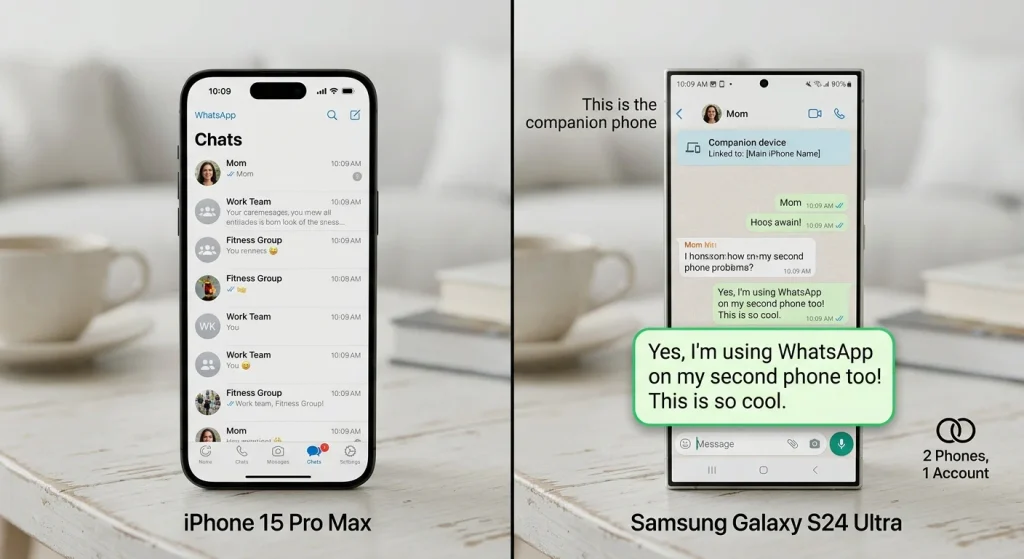
WhatsApp has become an essential communication tool for millions of people. Whether you use it for personal conversations, business communication, or staying connected with family and friends, having access to your messages across multiple devices can make everyday communication much easier.
But what if you have two smartphones and want to use the same WhatsApp account on both devices?
A common question is: Can I use WhatsApp on two phones at the same time?
The answer is yes! WhatsApp allows users to connect multiple phones to one account through its Linked Devices feature. This means you can access the same WhatsApp account on two different smartphones without creating a second account or using another phone number.
In this guide, we explain how to use WhatsApp on two phones simultaneously, how to connect Android and iPhone devices, and what you should know about privacy, notifications, and account security.
Can You Use One WhatsApp Account on Two Phones?
Yes, WhatsApp supports using one account on multiple smartphones through its companion device feature.
Previously, WhatsApp accounts were primarily associated with one main smartphone. However, WhatsApp introduced multi-device support, allowing users to connect additional devices while keeping their original account active.
You can use the same account on two Android phones, two iPhones, or a combination of Android and iPhone devices.
For example, you can keep your primary WhatsApp account on your personal phone and connect another smartphone for work or business communication.
Your messages and conversations can synchronize across linked devices, although some features may work differently depending on the device.
How to Use the Same WhatsApp Account on Two Android Phones
If you have two Android smartphones, you can connect them using WhatsApp’s Linked Devices feature.
Follow these steps:
Step 1: Install WhatsApp on Your Second Phone
- Open Google Play Store on your second smartphone.
- Search for WhatsApp Messenger.
- Download and install the official application.
- Open WhatsApp after installation.
Step 2: Select the Companion Device Option
When WhatsApp opens, you will see the welcome screen.
Instead of entering your phone number, look for the menu option that allows you to link the device.
Depending on your WhatsApp version, you may need to:
- Tap the three-dot menu.
- Select Link as Companion Device.
- Wait for a QR code to appear on the screen.
Step 3: Open WhatsApp on Your Primary Phone
Now take your main smartphone, where your original WhatsApp account is already active.
- Open WhatsApp.
- Tap the three-dot menu.
- Select Linked Devices.
- Tap Link a Device.
- Authenticate using your fingerprint, Face ID, or phone passcode if requested.
Step 4: Scan the QR Code
Use your primary phone to scan the QR code displayed on your second smartphone.
Wait for WhatsApp to synchronize your account.
Once the process is complete, you should be able to access the same WhatsApp account on both Android phones.
How to Use WhatsApp on Two iPhones at the Same Time
iPhone users can also connect two devices to the same WhatsApp account.
The process is similar to Android, although the menu locations are slightly different.
Step 1: Install WhatsApp on Your Second iPhone
Download WhatsApp Messenger from Apple’s App Store.
Open the application after installation.
Step 2: Choose the Link Device Option
On the welcome screen, look for the option to link an existing account rather than registering a new phone number.
A QR code should appear on your second iPhone.
Step 3: Open WhatsApp on Your Main iPhone
Follow these steps:
- Open WhatsApp on your primary iPhone.
- Tap Settings.
- Select Linked Devices.
- Tap Link a Device.
- Authenticate if requested.
Step 4: Scan the QR Code
Use your primary iPhone to scan the QR code displayed on your second iPhone.
After successful linking and synchronization, your WhatsApp account should be available on both devices.
Can I Use WhatsApp on Android and iPhone Together?
Yes! WhatsApp’s companion device feature supports different smartphone platforms.
For example, you can use:
- Your primary WhatsApp account on an Android phone and a second iPhone.
- Your primary account on an iPhone and a second Android phone.
- One account across two Android smartphones.
- One account across two iPhones.
The linking process remains largely the same.
You simply install WhatsApp on the second device, select the companion-device option, and scan its QR code using your primary phone.
Can Both Phones Receive WhatsApp Messages at the Same Time?
Yes. When both devices are successfully linked, they can receive synchronized WhatsApp messages.
For example, if someone sends you a message, it can appear on both smartphones.
You can also send and reply to messages from either device.
However, notifications may differ depending on your notification settings, device activity, and WhatsApp version.
This makes the feature particularly useful for people who regularly switch between personal and business smartphones.
Do Both Phones Need to Be Connected to the Internet?
Yes, each phone generally needs its own internet connection to receive and send messages.
However, an important advantage of linked devices is that your primary phone does not need to remain continuously connected to the internet for the companion device to work.
Once linked, supported companion devices can operate independently for extended periods.
WhatsApp may require the primary phone to connect periodically to maintain the linked-device setup. If the primary phone remains inactive for an extended period, linked devices may be logged out.
Can I Make WhatsApp Calls From Both Phones?
Yes, linked devices support WhatsApp voice and video calling.
You can make and receive supported WhatsApp calls from linked smartphones.
This means you do not necessarily need to return to your primary phone every time you want to make a WhatsApp call.
Call availability and certain features may vary depending on your device and application version.
Can Someone See My Messages If I Link My WhatsApp to Their Phone?
Yes. This is an important privacy consideration.
When you link your WhatsApp account to another smartphone, that device becomes an authorized companion device.
Depending on synchronization and feature availability, its user may be able to access your conversations and send or receive messages through your account.
Therefore, never scan a QR code displayed on someone else’s device unless you intentionally want to give that device access to your WhatsApp account.
If you suspect someone has linked your account without permission:
- Open WhatsApp.
- Go to Linked Devices.
- Review all connected devices.
- Select any unfamiliar device.
- Tap Log Out.
You should also enable two-step verification to improve account security.
How Many Phones Can Use One WhatsApp Account?
WhatsApp supports one primary phone and up to four additional linked devices under its standard multi-device system.
The total number and availability of linked devices can depend on the current WhatsApp account and supported device configurations.
This means you can potentially use one WhatsApp account across several devices without registering separate accounts.
What Happens If I Delete WhatsApp From My Primary Phone?
Deleting WhatsApp from your primary phone does not automatically mean your account will remain accessible forever on all linked devices.
Linked-device access is subject to WhatsApp’s account and device-management rules.
If you uninstall the application, change phones, or register your number again, your account and linked-device configuration may be affected.
Before making major changes, ensure that your important conversations are backed up.
Frequently Asked Questions
Can I Use WhatsApp on Two Phones With the Same Number?
Yes. Use the Linked Devices feature to connect your second smartphone as a companion device instead of registering it as a new primary phone.
Can I Use WhatsApp on Two Phones Without a QR Code?
The standard companion-device linking process uses a QR code. Depending on the available version and setup options, WhatsApp may also offer alternative linking methods, such as linking with a phone number and a one-time code.
Will My WhatsApp Messages Be Deleted From the First Phone?
No. Linking a second phone does not normally delete your existing conversations from the primary device.
Can I Use WhatsApp Business on Two Phones?
Yes. WhatsApp Business also supports linked devices, allowing businesses to access their account from multiple supported devices.
Can I Receive WhatsApp Messages on Both Phones Even When One Is Switched Off?
Yes, provided the other linked phone is connected to the internet and remains authorized. It does not need the primary phone to be switched on continuously.
Is It Safe to Use WhatsApp on Two Phones?
Yes, using the official Linked Devices feature is a supported way to access your account on multiple devices. However, only link devices you trust and regularly review your connected-device list.
Final Thoughts
So, can you use WhatsApp on two phones at the same time? Absolutely!
WhatsApp’s Linked Devices feature makes it possible to access one account on multiple smartphones without needing a separate phone number for every device.
Whether you use two Android phones, two iPhones, or a combination of both, the process is straightforward. Simply install WhatsApp on your second phone, select the companion-device option, and scan the QR code using your primary device.
Just remember to protect your account by enabling two-step verification and avoiding unauthorized device connections.
With the right setup, you can manage your WhatsApp conversations from two smartphones conveniently and securely.